Vitanium’s Object Storage platform is fully compatible with the Veeam Capacity Tier. It also supports a key feature in the Object Storage standard, known as Object Lock, to provide immutability to uploaded data.
Why is this useful?
Object Lock is a key technology that enables true immutability in backup files.
When an object is uploaded with Object Lock enabled, it cannot be removed from the storage until that date expires. This includes removal by the backup software, customer, service provider or malicious attacker.
Therefore, this is an effective defense against ransomware, which can traditionally encrypt and render useless on-premise backup files in the case of a ransomware attack. More advanced variants can also have a malicious actor within the network seeking out backup files and actively destroying them.
The solution:
This is a step by step guide to configuring Veeam to use Vitanium’s Object Storage as a capacity tier with a Scale Out Backup Repository (SOBR).
The guide assumes that:
- You already have Veeam Backup & Replication Enterprise or higher installed – Standard edition does not have support for SOBR.
- You already have the keys to access Vitanium’s Object Storage, with a bucket created that has Object Lock enabled (contact support for clarification).
Local Repository
A local storage repository must first be created to be used as part of the SOBR.
This can be an existing repository that is currently in use, or a new one dedicated to the SOBR.
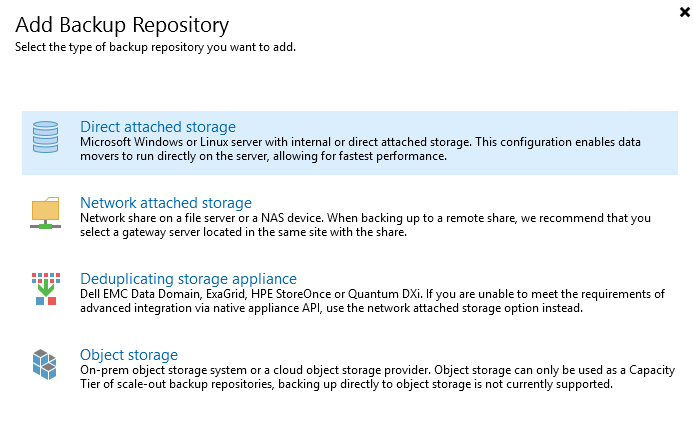
Open the Veeam console and navigation to Backup Infrastructure -> Backup Repositories. Select Add Repository.
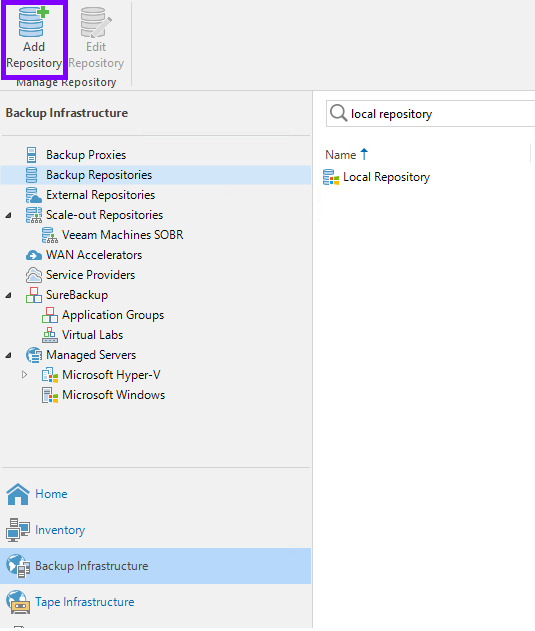
Follow the wizard to add local Direct Attached or Network Attached storage:
Object Repository
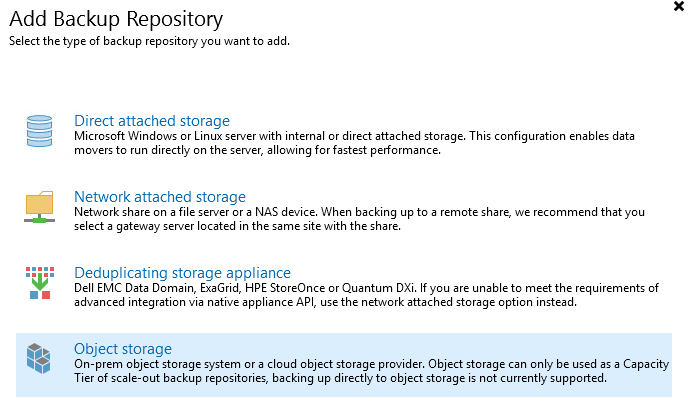
We then need to add the Object Storage for the SOBR. Select Add Repository again, and then Object Storage:
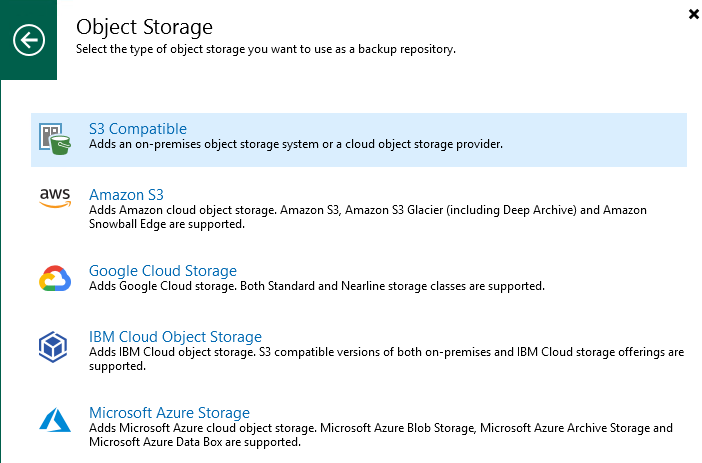
Choose S3 Compatible storage:
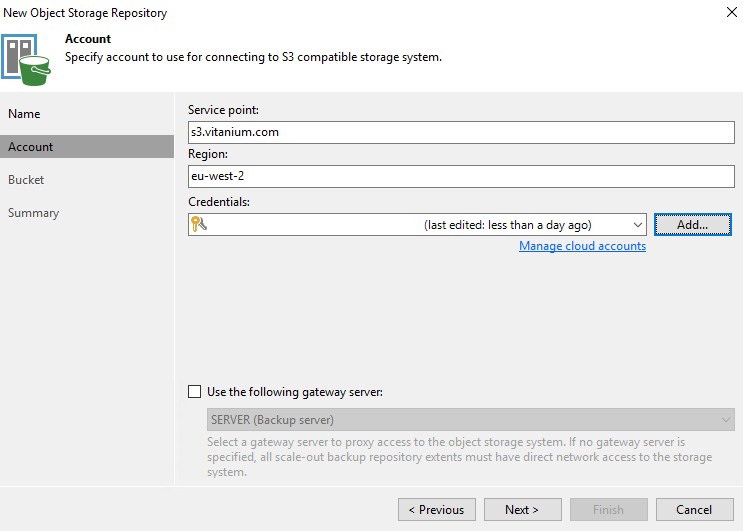
Follow the wizard through, provide a meaningful name e.g. Vitanium Object Storage.
On the Account screen, use the details as provided in your confirmation. The Credentials are the access/secret key for your bucket.
Choose a bucket within the account, create a sub folder and if desired set a limit on the object storage usage.
Ensure the option for ‘make recent backups immutable’ is selected with the desired length of time to retain data – this is the immutable setting for the object storage.
Note: The length of time specified here is how long data is immutable or “locked” on the Object Storage. This will mean storage charges will apply for that length of time – e.g. if 365 days is set, there will be one year of billings from that date. It can be adjusted upwards later, so may be best to start low and increase once all backups are uploaded.
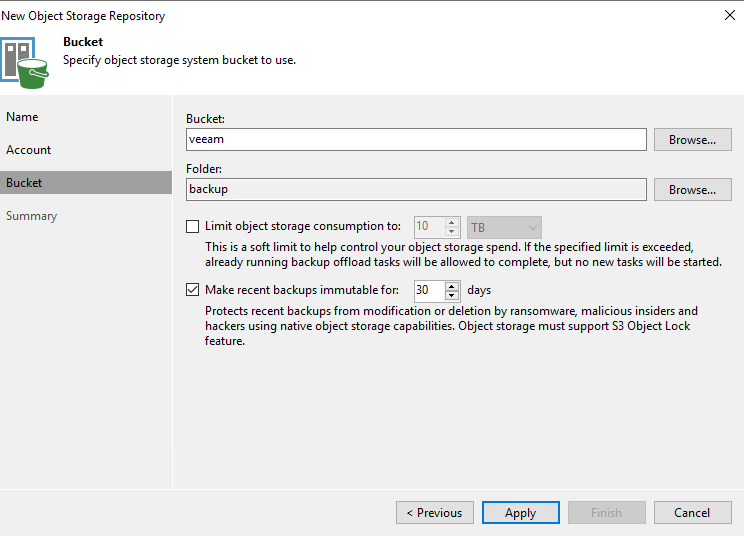
Apply and finish to save the configuration.
Scale Out Backup Repository
It’s then time to create the SOBR joining the local + object storage into a logical unit.
Under Backup Infrastructure -> Scale-Out Repositories select Add Scale-Out Repository:
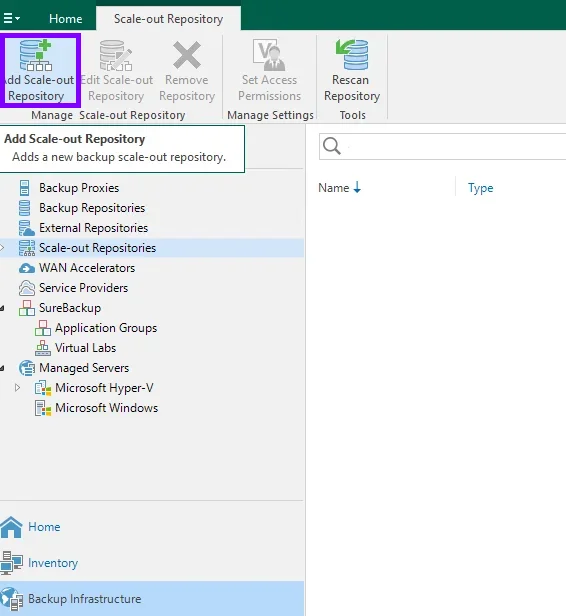
Follow the wizard through and provide a meaningful name.
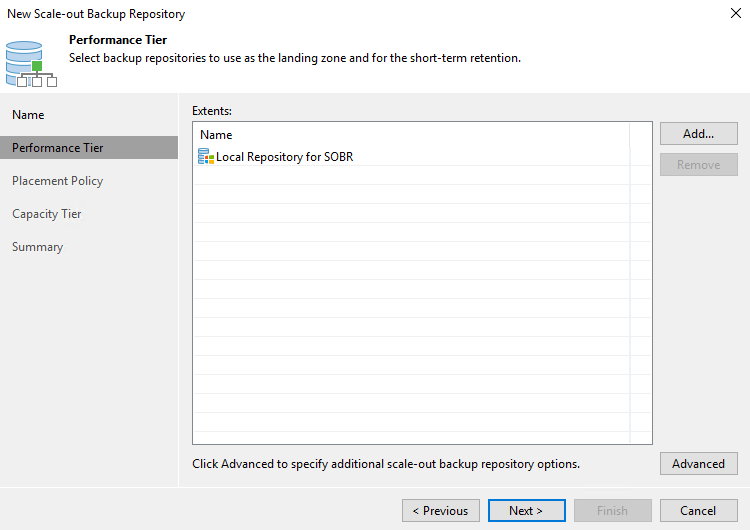
On the Performance Tier tab, select Add and choose the Local Repository you created (or existed already):
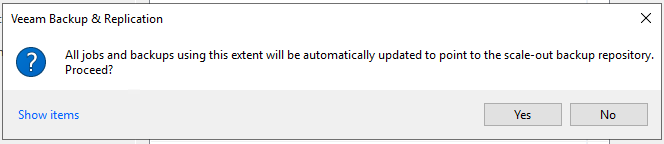
If it’s an existing repository with backup jobs within it, you will be prompted to automatically update these to use the new SOBR instead:
Leave the Placement Policy on default (unless you have multiple local storage extents).
On the Capacity Tier tab, tick to extend the SOBR into the Object Storage. Select Copy backups to object storage as soon as they are created and, if desired, you can select to move backups older than a certain number of days.
Data can also be encrypted before being uploaded to the Object Storage platform.
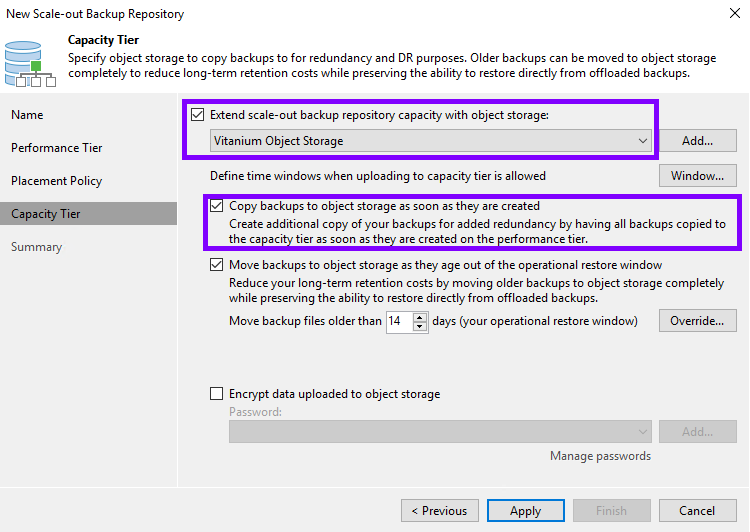
Select Apply and Finish to save.
If backups already exist in the local extent (Performance Tier), you will be asked if all backups or just the latest chain is to be uploaded.
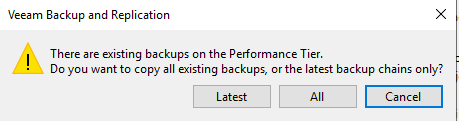
If backups already exist in the local extent, they will begin uploading.
Otherwise, create a new Backup job and target it to the SOBR you just created. The data will backup to the local (performance) extent, and then upload into the Object Storage once completed.
Restoring
Restoring is much the same as from a normal backup, and is seamless within the Veeam GUI.
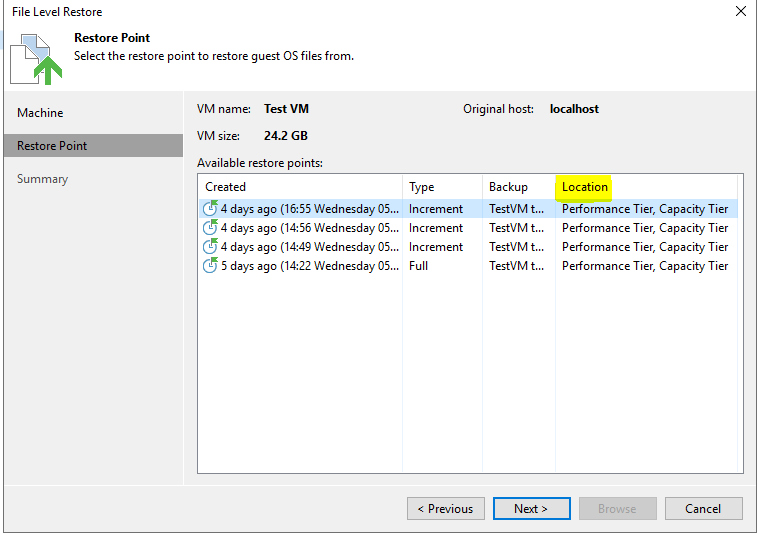
You can see that the restore lists where the restore points are located. In this instance, the restore points reside in both the local performance tier and offsite in the capacity tier (aka Object Storage).